
For Design Super Store Users: Before proceeding, you must have either logged into your email account for the first time at https://mail.designsuperstore.com or had your new email account set up in outlook on your assigned computer before this will function.
Setup Office 365 email on iPhone using Outlook for iOS
- Download Outlook for iOS from the App Store here, or just search for Outlook on the App Store.
- Open the Outlook app and tap Get Started

- Swipe through the introductory screens and tap Add Account

- Tap Exchange

- Tap "Show Advanced Settings, Enter your email and password, and information as shown here:
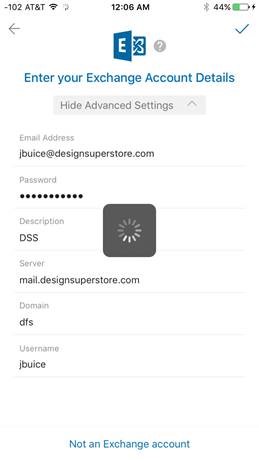
Your account will appear in the Settings of the app.
Setup Office 365 email on Android using Outlook
1. On your mobile device, go to the Google Play Store and install the Microsoft Outlook app.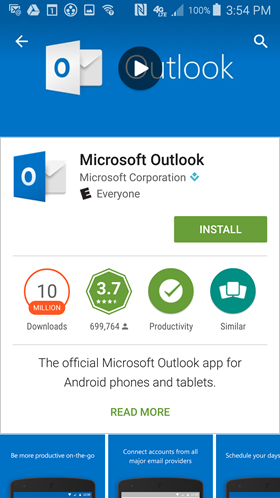
2.Open the app after it is installed.
3.Tap Get Started.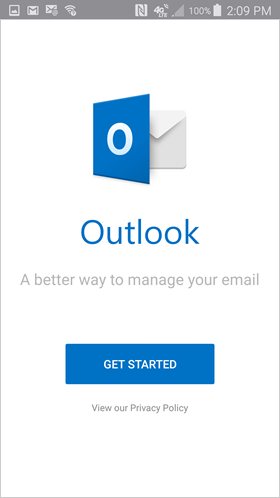
4.Enter your email address and password then tap Continue.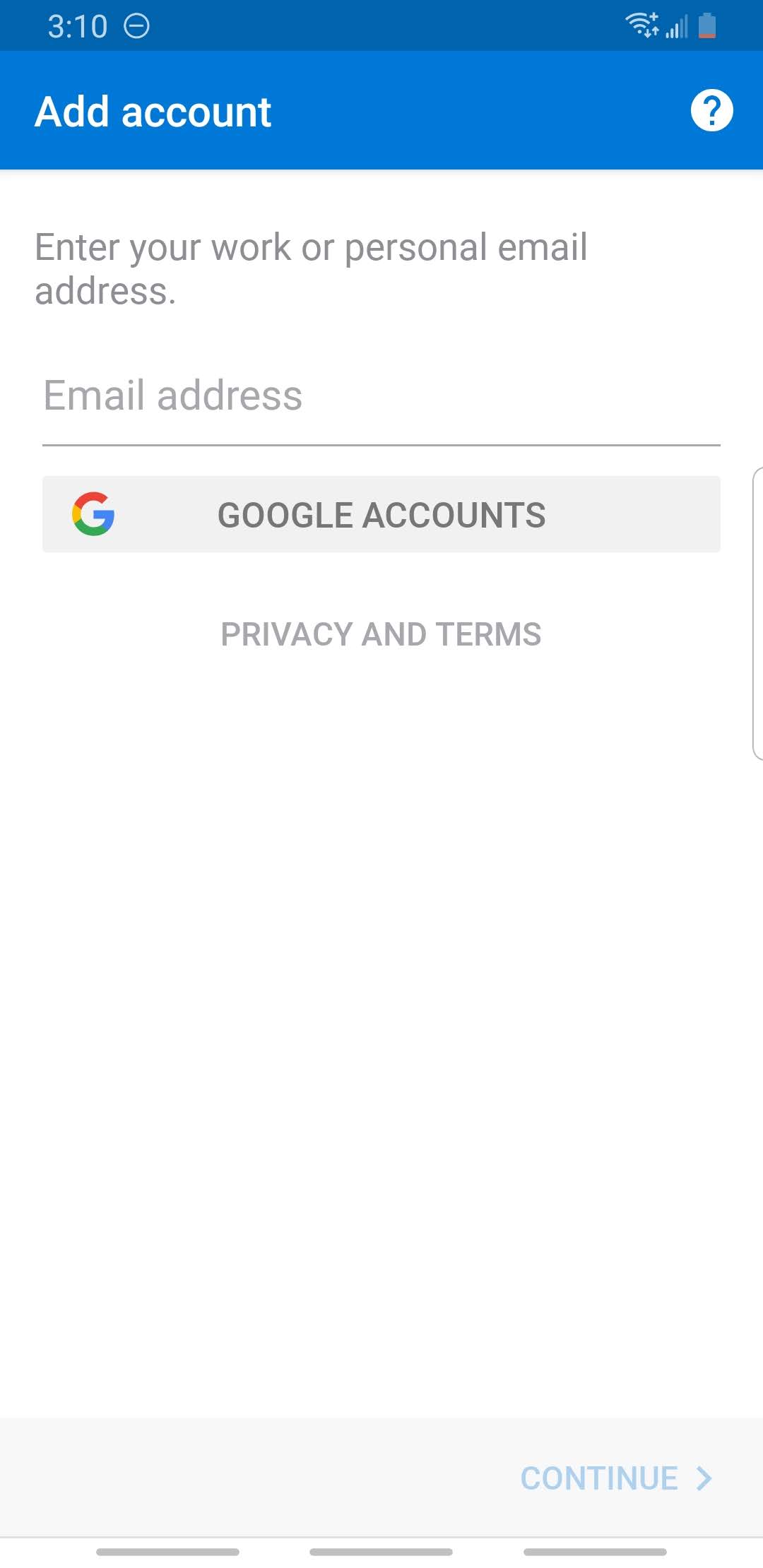
5. Tap the Question mark Icon at the top right.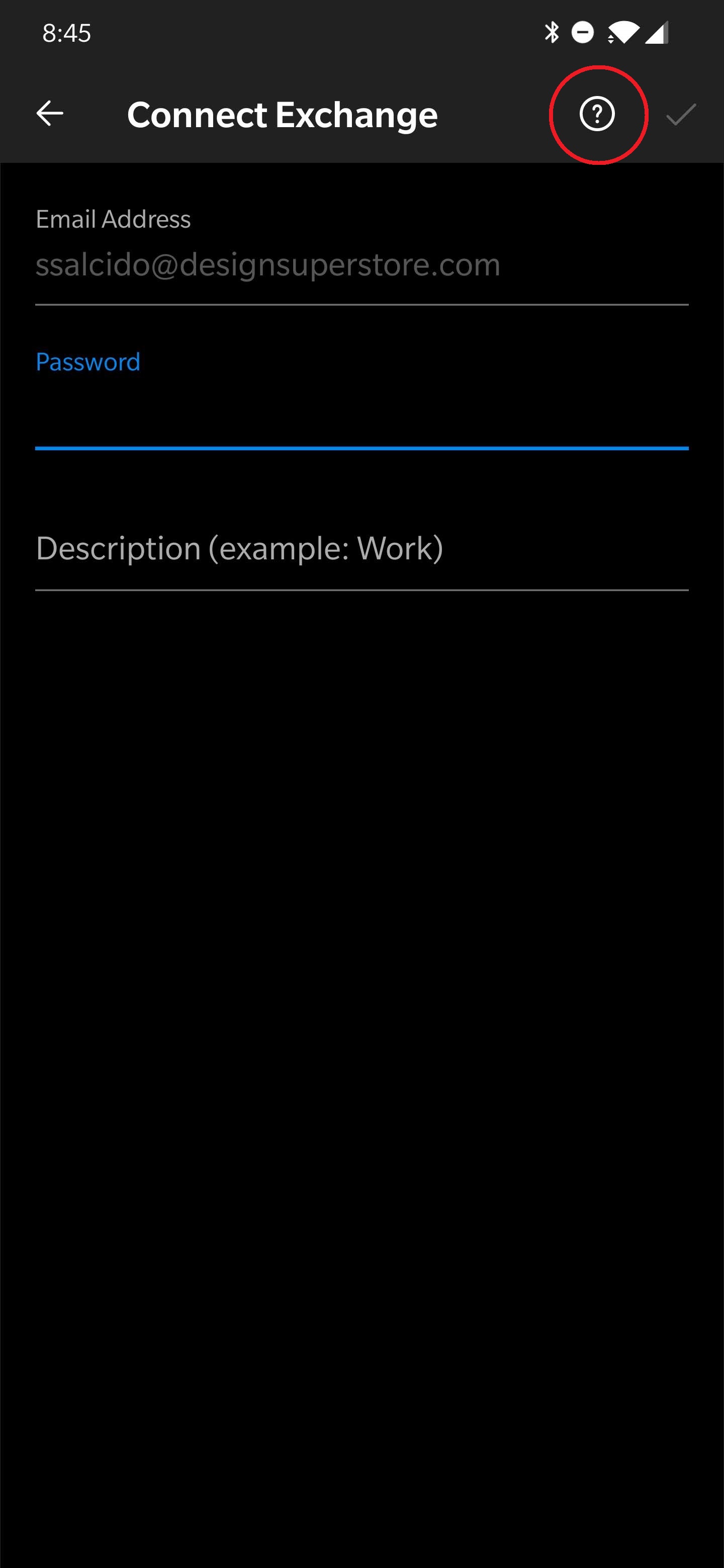
6. Tap on Change Account Provider.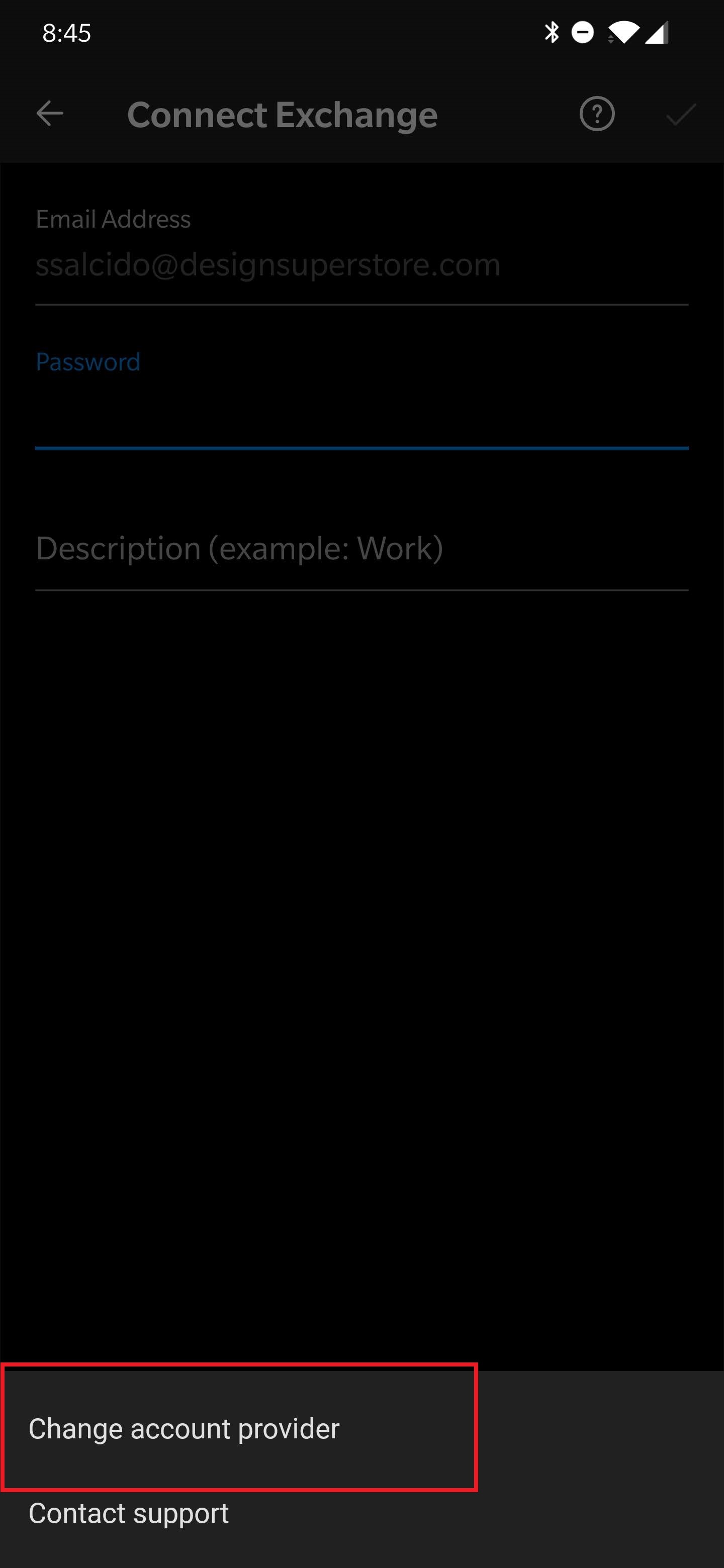
7. Tap on Exchange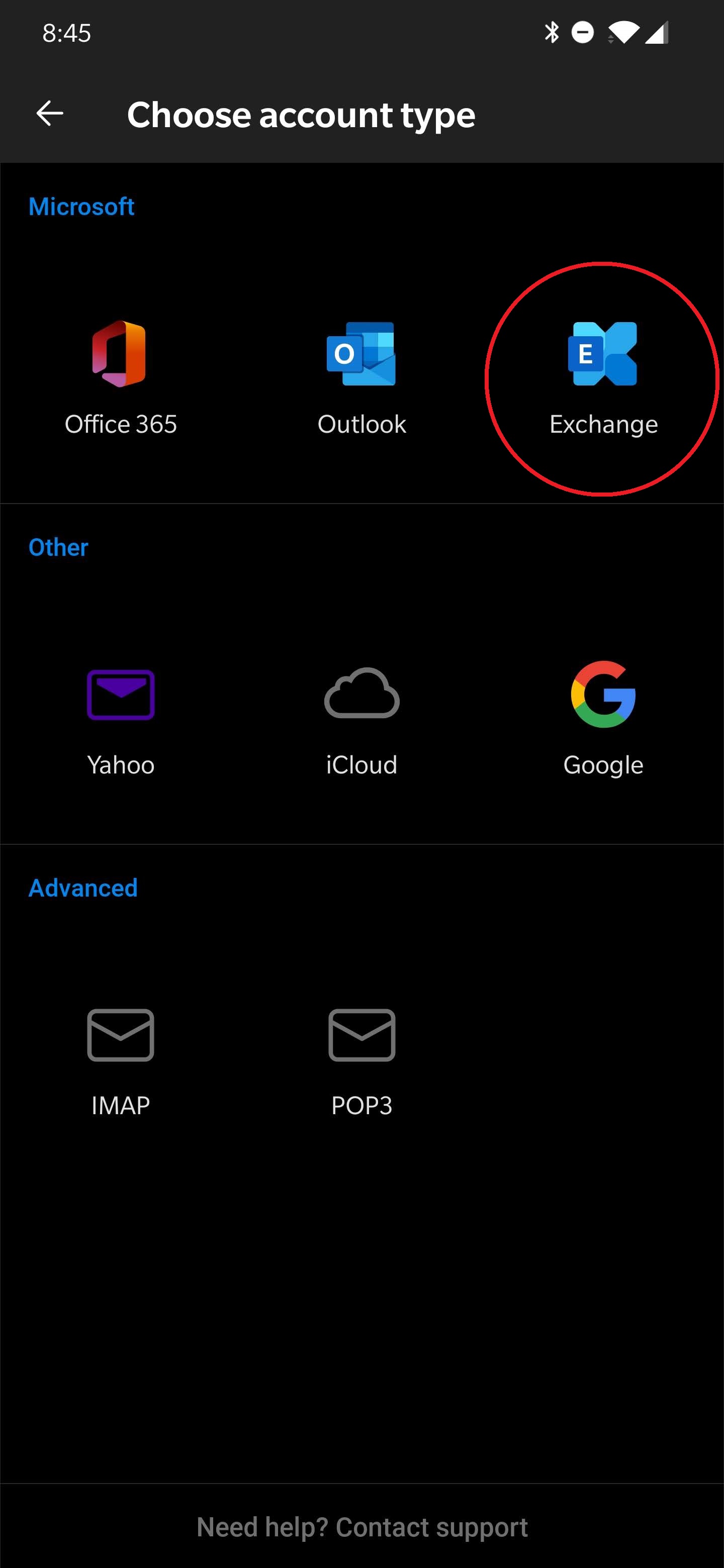
8. Fill out this page, with your information; as shown in the picture below. Then Tap the Check Mark.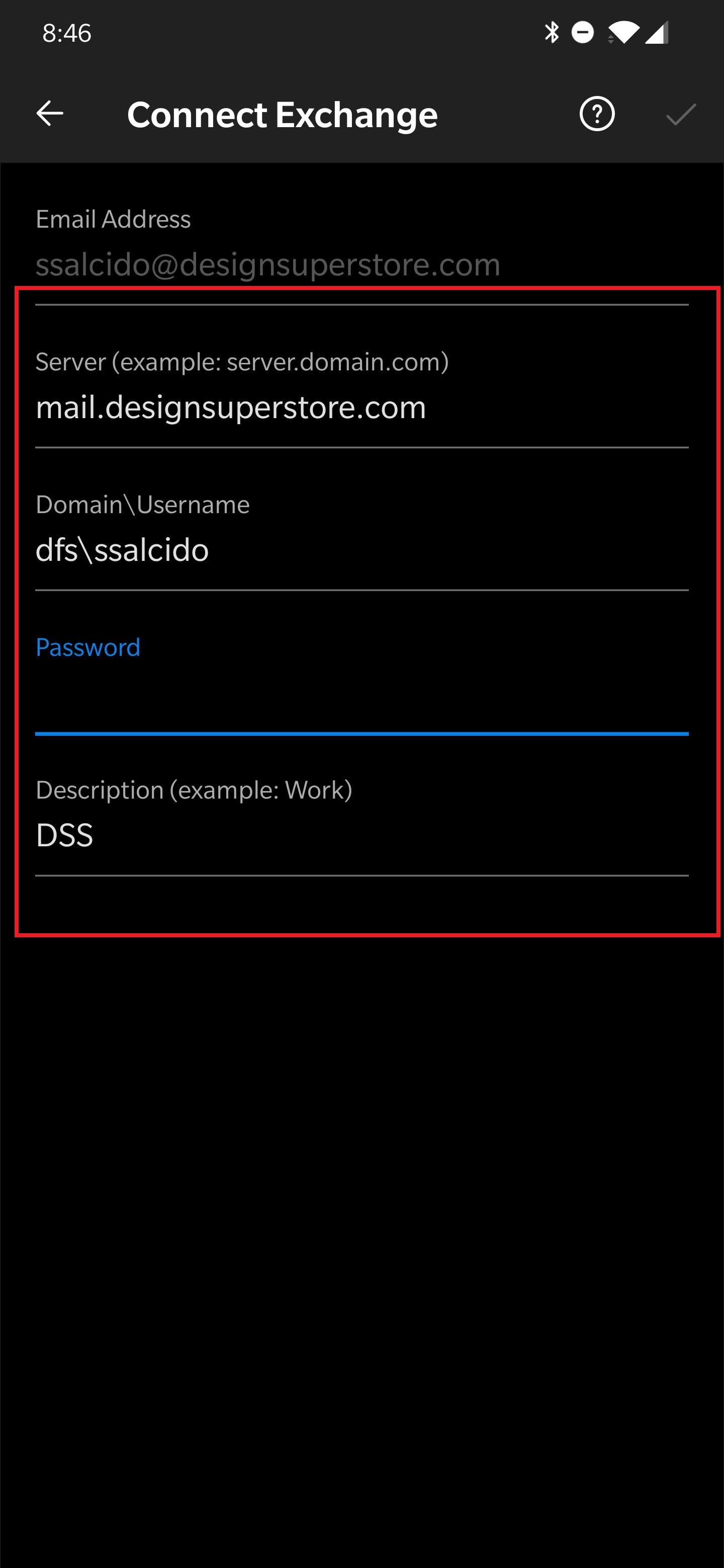
9. A few screens of help text are presented, which you can read or skip. Your Inbox will now load and display.
Comments
0 comments
Please sign in to leave a comment.