
Before Leaving the office!
You need to verify your computer's name or IP address so you can still get remote access to it from home.
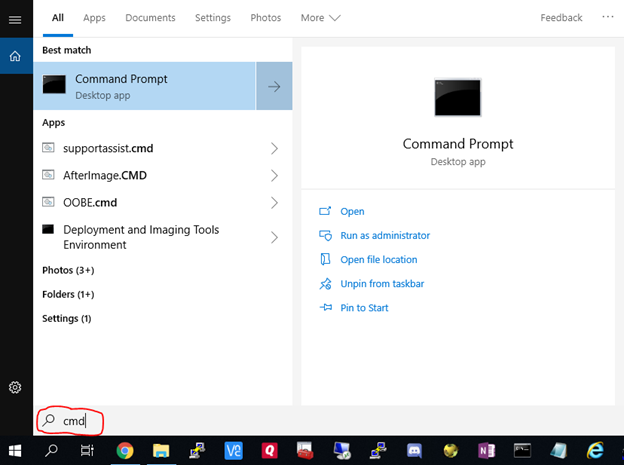
Type “cmd” in your search bar and when “Command Prompt” shows up in your search results press the “Enter” key.
Type “ipconfig” and then press the “Enter” key. Your IPv4 address will look similar to this:
Example Output:
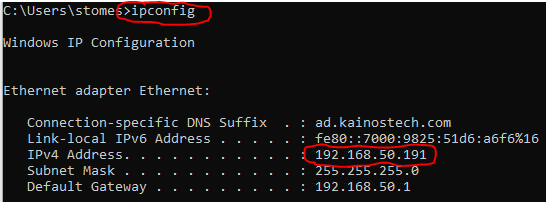
Document the number circled! This will be different for every person.
------------------------------------------------------------------------------------
After being home, you should have an email from Kainos that contains a link specific to your company:
Click the link.
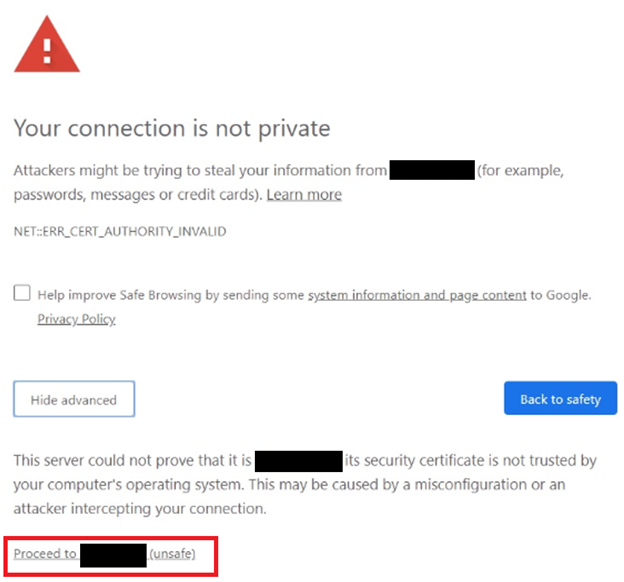
Bypass the “insecure” window by hitting advanced and proceed.
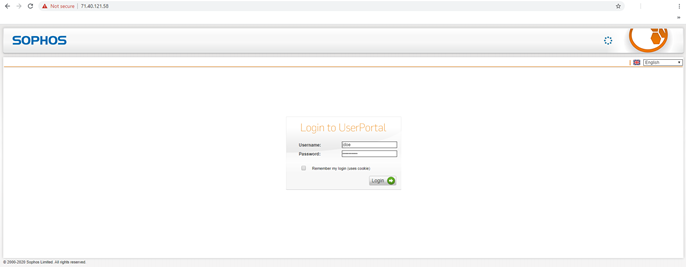
Login with your Windows credentials:
Click Remote Access at the top.
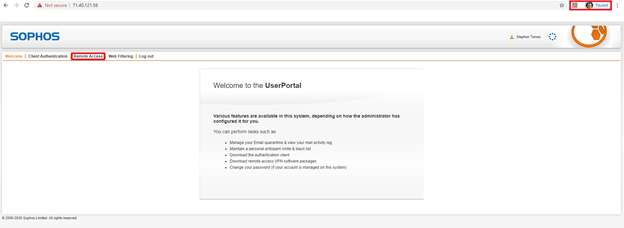
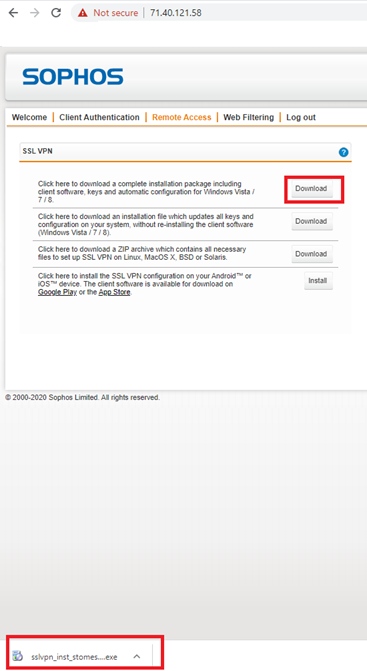
Click here to download a complete installation package including client software, keys and automatic configuration for Windows Vista / 7 / 8.
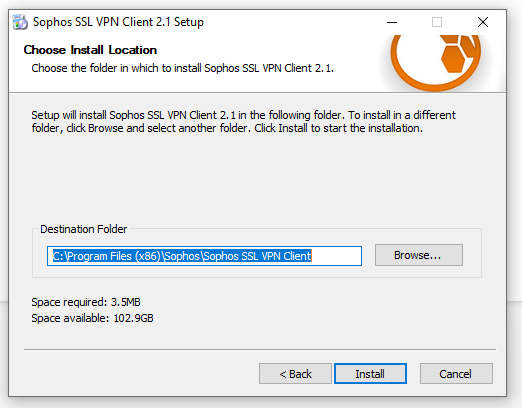
You must down install the VPN client that has been downloaded. All options can be left as default.
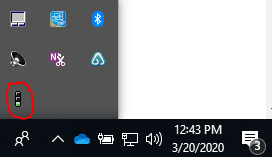
You should now have a red stop light in your lower right hand menu that looks like this:
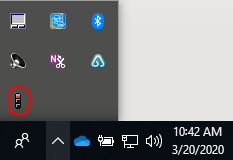
Right click it, hit Connect.
Use your Windows log in and password here.
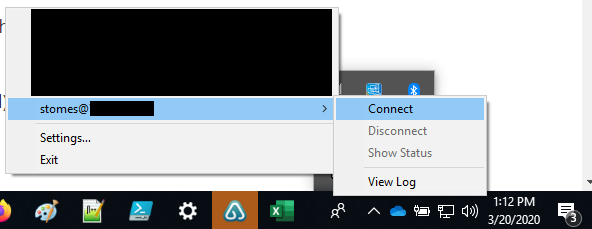
Wait a few seconds and the stop light will turn green. You are now connected!
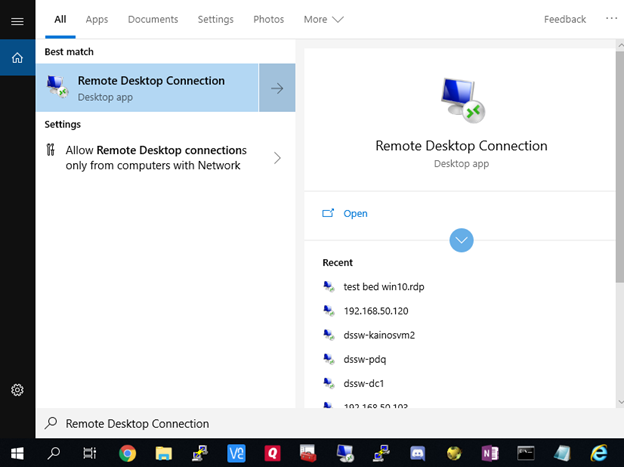
After connecting, click on the search icon at the bottom left corner of your screen and type “Remote Desktop Connection” and then press “Enter”.
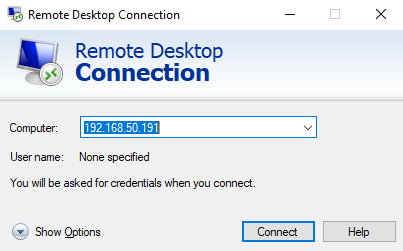
Remote desktop will open on your computer. Type in your documented IPv4 address that you brought home with you from your work location:
Checkmark “Don’t ask me again for connections to this computer” on both of these prompts:
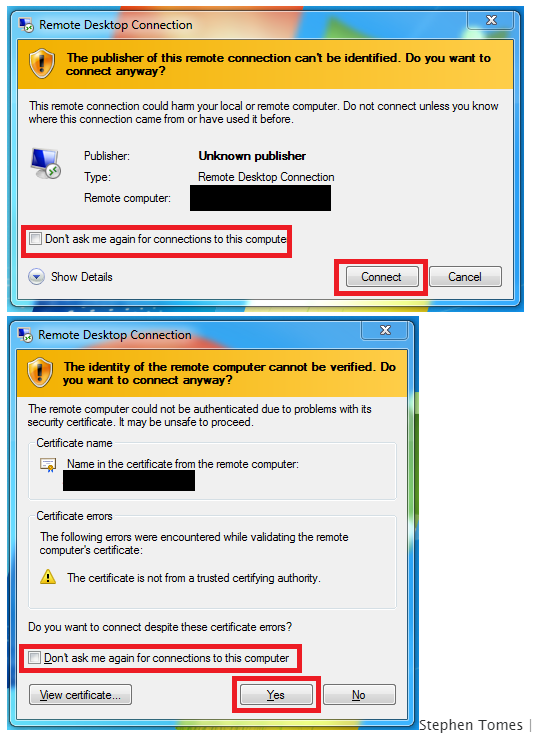
You are now connected to your computers remotely!
Comments
0 comments
Please sign in to leave a comment.